
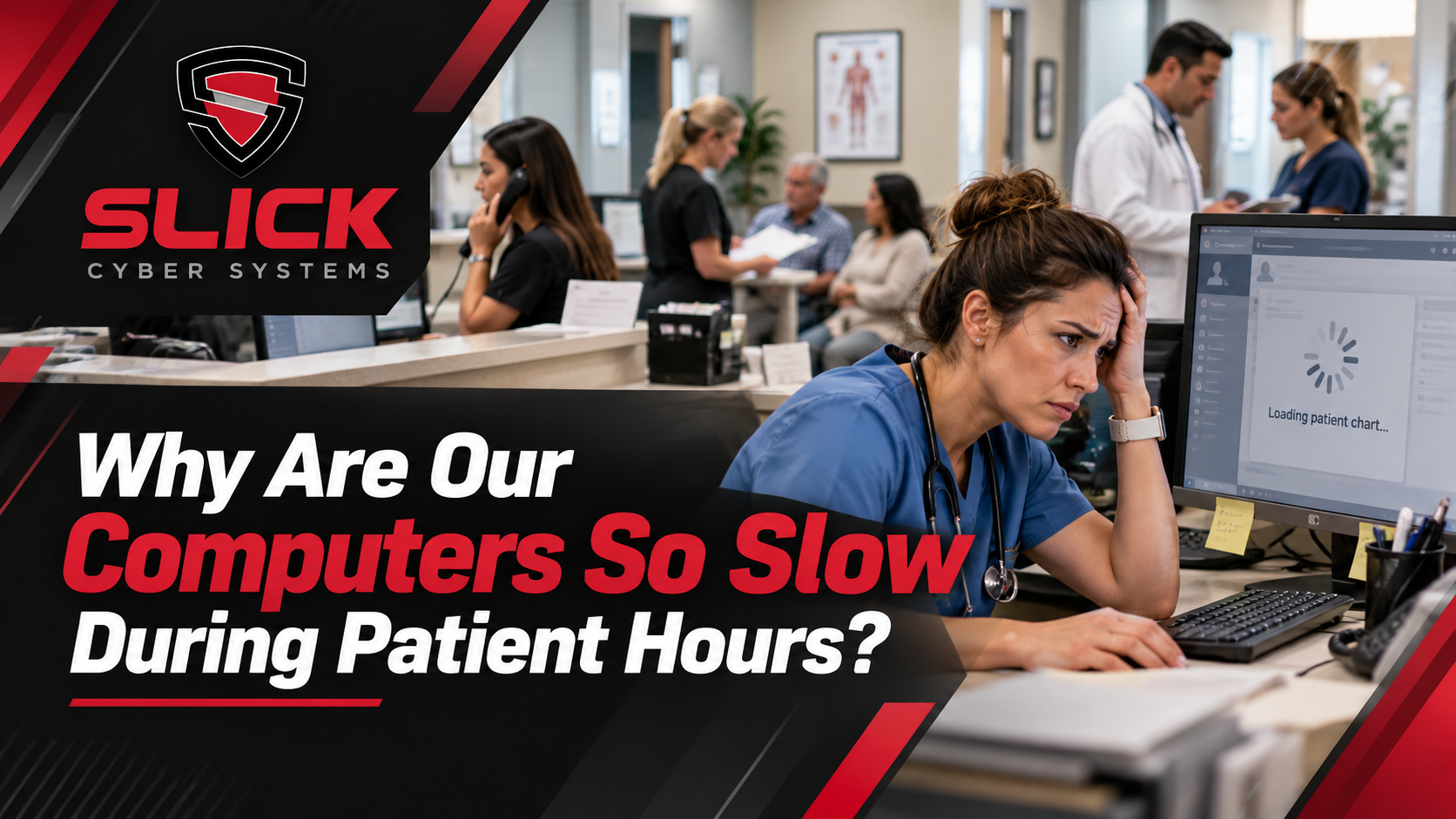
Slow medical office computers can quietly disrupt an entire patient day.
A workstation that takes too long to log in slows check-in. A computer that freezes while opening the EHR delays documentation. A billing workstation that constantly hangs wastes staff time long after the last patient leaves.
The problem often gets worse during the busiest part of the day.
That pattern matters.
If computers slow down mainly during patient hours, the problem may not be the computers alone.
Why Are Medical Office Computers Slow During Patient Hours?
There are several common causes:
- Aging workstations
- Overloaded servers
- Slow EHR performance
- Network congestion
- Poor Wi-Fi
- Internet bottlenecks
- Background updates
- Security software using too many resources
- Low memory or storage
- Too many applications running at once
The right fix depends on where the slowdown actually starts.
That is why replacing computers before identifying the cause can waste money.
The Most Common Causes of Slow Medical Office Computers
1. The Workstation Is Too Old
Sometimes the computer really is the problem.
Older workstations may struggle with:
- Modern EHR applications
- Microsoft 365
- Security software
- Browser-based systems
- Scanning
- Video calls
- Multiple applications running together
Signs of a workstation problem include:
- Slow startup
- Long login times
- Constant freezing
- Applications opening slowly
- High memory use
- Low disk space
If only one computer is slow while others work normally, start with that device.
2. The EHR or Server Is the Bottleneck
A slow EHR does not automatically mean the workstation is bad.
The EHR may depend on:
- A local server
- A database
- Cloud connectivity
- Storage
- Network performance
- Internet service
If several employees experience the same EHR slowdown at the same time, the issue may sit behind the application.
Slick Cyber Systems’ Business Systems Management Services focus on the infrastructure supporting critical applications such as EHR, practice-management, and database systems.
3. The Network Is Overloaded
A medical office network may support:
- EHR users
- Phones
- Scanners
- Printers
- Cloud applications
- Wireless devices
- Microsoft 365
- Security systems
- Imaging
- Remote access
As more users become active, demand increases.
If performance drops during busy hours, network capacity may be part of the problem.
4. Wi-Fi Is Unreliable
Wi-Fi problems can make a perfectly good computer feel slow.
Common causes include:
- Poor signal
- Coverage gaps
- Interference
- Too many connected devices
- Aging access points
- Bad access-point placement
If wired computers work normally but wireless devices struggle, the issue is probably not the workstation.
5. Background Updates and Security Tools Are Competing for Resources
Medical practices need updates and strong cybersecurity.
But poorly scheduled updates or resource-heavy security tools can create performance issues.
A computer may slow down when:
- Windows updates install
- Antivirus scans run
- Cloud files synchronize
- Security tools inspect traffic
- Multiple background applications start together
The answer is not to weaken security.
It is to make sure the workstation has enough resources and updates are managed properly.
How to Tell Where the Problem Is
Before replacing anything, answer five simple questions.
Is One Computer Slow or Several?
If one device is affected, look at the workstation first.
If several computers slow down together, investigate shared infrastructure.
Is Everything Slow or Just One Application?
If only the EHR is slow, investigate the EHR, server, database, or network supporting it.
If everything is slow, the workstation itself may be the issue.
Does the Problem Happen All Day or Mainly During Patient Hours?
Peak-hour slowdowns often point toward:
- Capacity
- Network congestion
- Server load
- Internet demand
- Too many simultaneous users
Are Wired and Wireless Devices Both Slow?
If wired systems are fine and Wi-Fi devices are slow, investigate wireless performance.
Are Local and Cloud Applications Both Slow?
If only cloud applications are slow, internet connectivity may be involved.
If local applications are also slow, the problem may be inside the office.
When the EHR Is the Only Thing Running Slowly
If everything else performs normally but the EHR is slow, do not automatically replace the computers.
Look at:
- EHR application performance
- Database response
- Server utilization
- Storage
- Network latency
- Internet connectivity
- Vendor-side issues
The goal is to find where the delay occurs between the user and the EHR.
Your IT provider should be able to work with the EHR vendor instead of simply telling staff to call someone else.
When Several Computers Slow Down at Once
This is usually a shared-infrastructure problem.
Possible causes include:
- Server overload
- Network congestion
- Firewall limitations
- Internet problems
- Wireless issues
- DNS problems
- Shared application performance
If many computers become slow at the same time, replacing them one by one is unlikely to fix the problem.
Instead, investigate the systems they all depend on.
Should You Replace the Computers?
Sometimes yes.
Replacement makes sense when a workstation has:
- Unsupported operating systems
- Failing hardware
- Insufficient memory
- Slow storage
- Repeated hardware problems
- Applications that exceed its capabilities
- Security tools it can no longer support efficiently
But the decision should be based on evidence.
“The computer feels slow” is a symptom, not a diagnosis.
What Slow Computers Cost a Medical Practice
Slow technology creates more than frustration.
It affects:
- Check-in
- Documentation
- Scheduling
- Billing
- Patient communication
- Staff productivity
- Patient flow
Even small delays add up.
If a medical assistant loses two minutes per patient and sees 20 patients, that is 40 minutes.
Now multiply similar delays across:
- Front desk
- Providers
- Nurses
- Billing
- Administration
The computers may never completely fail.
But the practice still loses productive time every day.
What to Do Next
Use a simple process.
1. Identify the Pattern
Determine:
- Who is affected
- What is slow
- When it happens
- Whether it is wired or wireless
- Whether it affects one application or everything
2. Measure the Bottleneck
Review:
- Workstation performance
- Server utilization
- Network traffic
- Internet performance
- Wi-Fi coverage
- Storage
- Application performance
3. Fix the Actual Cause
That may mean:
- Upgrading memory
- Replacing an aging workstation
- Improving Wi-Fi
- Upgrading network equipment
- Fixing a server bottleneck
- Working with the EHR vendor
- Improving internet connectivity
- Rescheduling updates
4. Replace Hardware Only When It Is Justified
Do not make replacement the first step unless the evidence supports it.
Slow Medical Office Computers Should Not Become Normal
One of the biggest problems is that staff gets used to slow technology.
They wait.
They restart computers.
They move to another workstation.
They avoid certain rooms.
They build workarounds.
Eventually, poor performance becomes part of the routine.
It should not.
Slow medical office computers are an operational problem when they affect patient flow, EHR access, billing, or staff productivity.
Slick Cyber Systems helps medical practices evaluate workstations, servers, networks, Microsoft 365, business applications, and the infrastructure behind daily operations.
If slow computers are repeatedly affecting your practice, the next step should be identifying the real bottleneck before replacing equipment.







Leave A Comment
You must be logged in to post a comment.